About users and roles
Learn what users are in Joy, how to view them and their profiles, and what owners and users can each see and do.
Users are the people who have access to your Joy account, such as learners, administrators, and learning coordinators. Every user has their own profile with useful information, such as personal details and contact information.
Roles
Access controls define what users can see and do in your Joy account. While we are building out a robust, flexible permissions system (coming soon!), access is currently controlled by assigning users one of two roles: Owner or User.
Owners have full administrative access to everything in your account, while users have a streamlined experience designed to help them focus on their daily work and learning.
| What you can do | Owner | User |
|---|---|---|
| View content in the Knowledge Center | Yes — owners can view folders, files, and published and draft FlexDocs | Yes — users can view folders, files, and published FlexDocs |
| Search the Knowledge Center | Yes | Yes |
| Add and update all assets (folders, files, and FlexDocs) in the Knowledge Center | Yes | No |
| Chat with the Knowledge Assistant | Yes | Yes |
| Manage all users (add new users, update existing users, and control whether someone is an owner) | Yes | No |
| Assign tasks | Yes | No |
| View tasks | Yes — owners can view tasks assigned to them and other users | Yes — users can view tasks assigned to them |
| Complete assigned tasks | Yes | Yes |
| Manually close tasks | Yes | No |
Only a task's owner — the person who assigned it — can manually close it. See Editing a task.
To learn how to set a user's role, see Managing users.
Users page
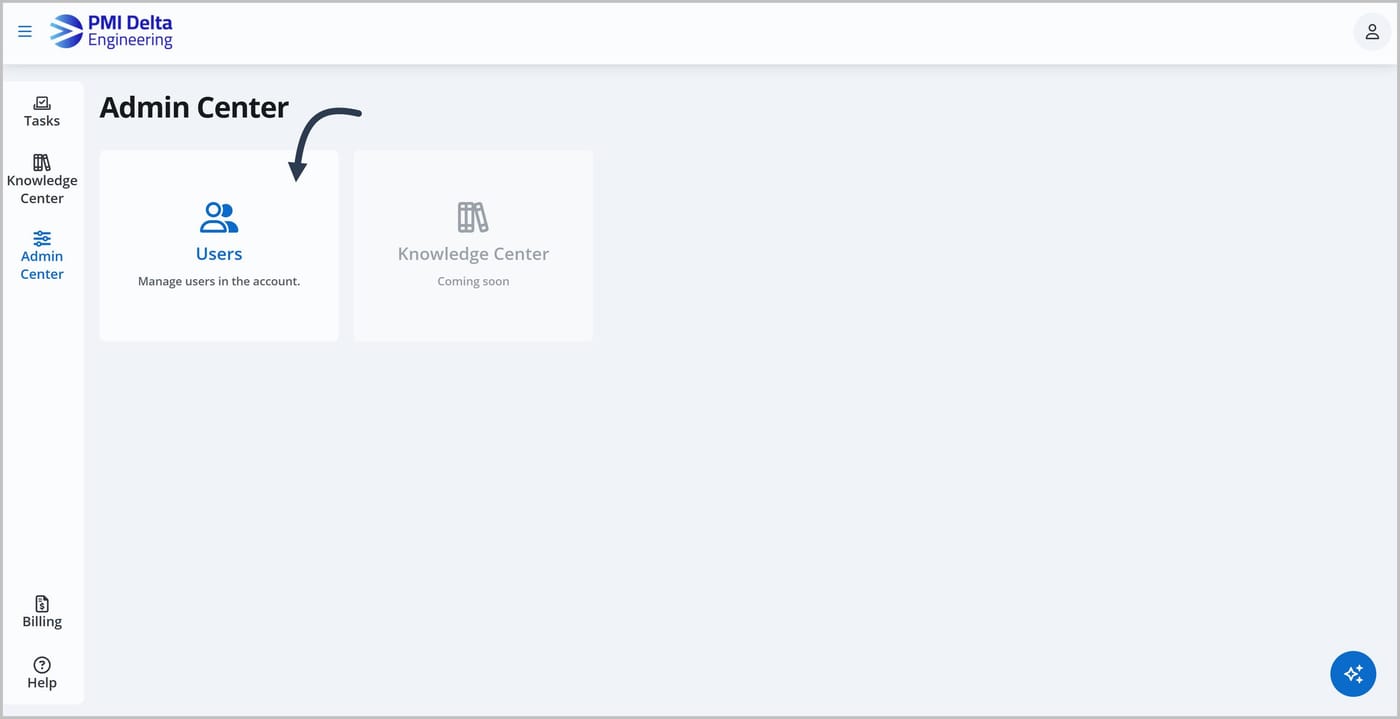
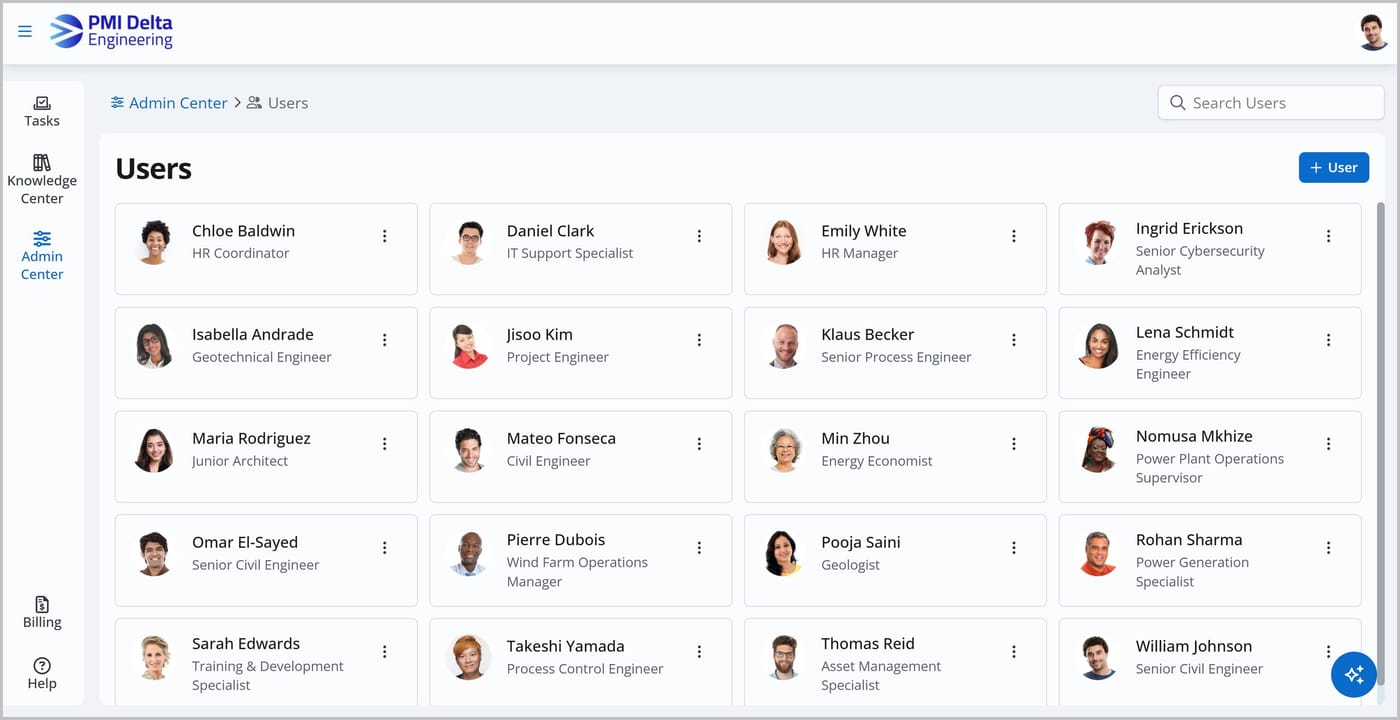
To get to the Users page, go to the Admin Center and click Users. From here, you can add, view, and manage all of the users in your account.
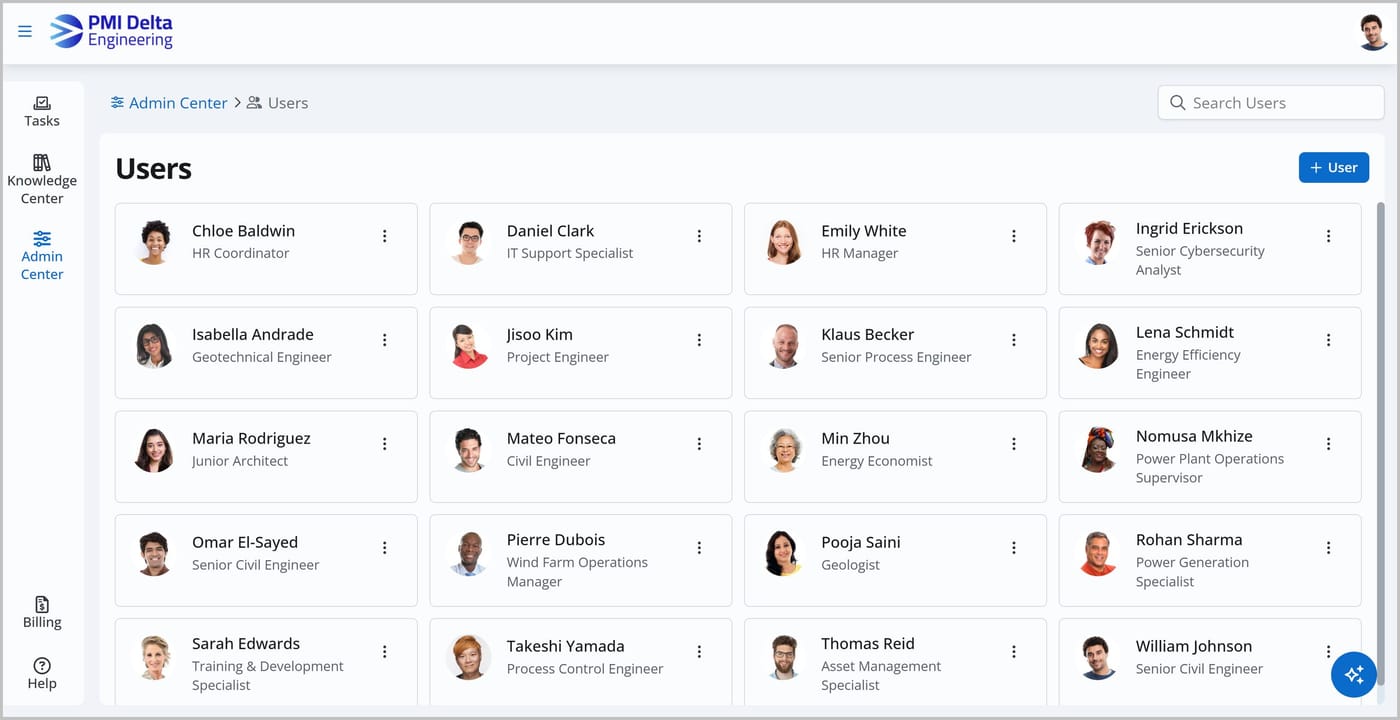
Each user is displayed on a separate card, alongside their profile picture, name, and title. Click a user's card to view their profile.
To search for a user, type their name into the search bar.
Viewing a user's profile
To view a specific user's profile, go to the Users page and click the user's card. This opens the User Admin panel.
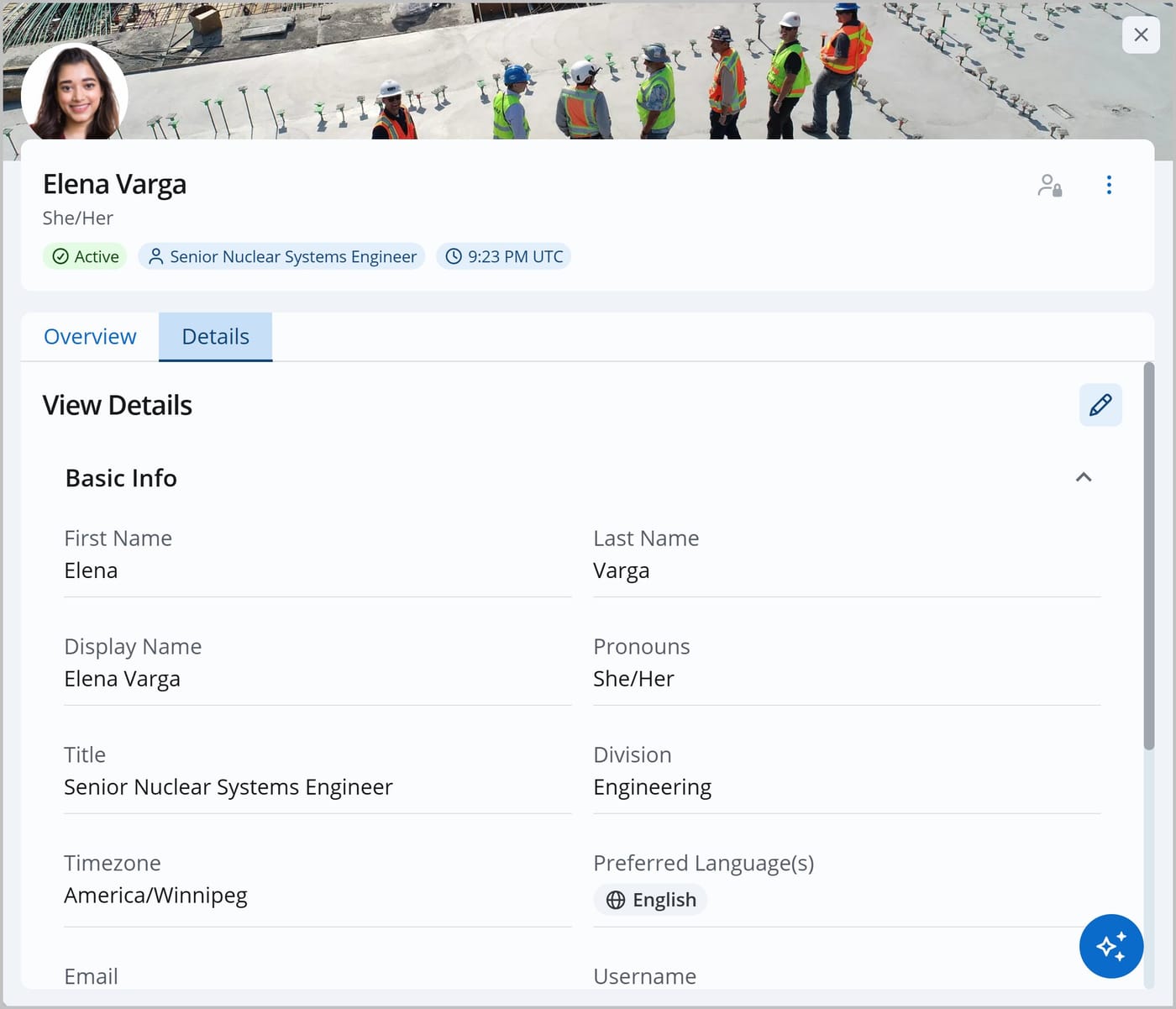
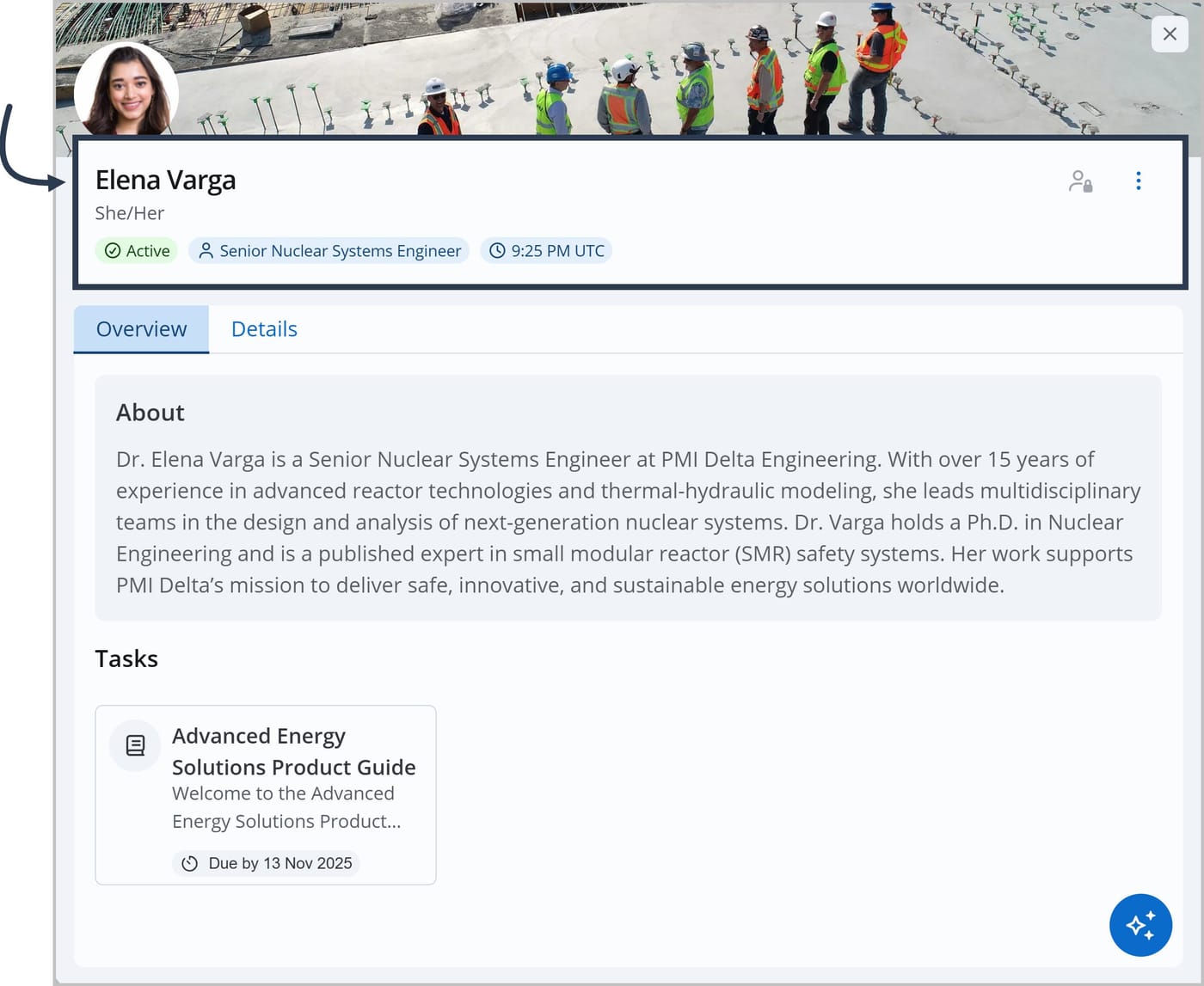
At the top of the panel, you'll see the user's name, profile picture, status, title, and the current time, adjusted for their time zone. There's also a More Actions icon that lets you edit the user's details.
The User Admin panel features two tabs: Overview and Details.
Overview tab
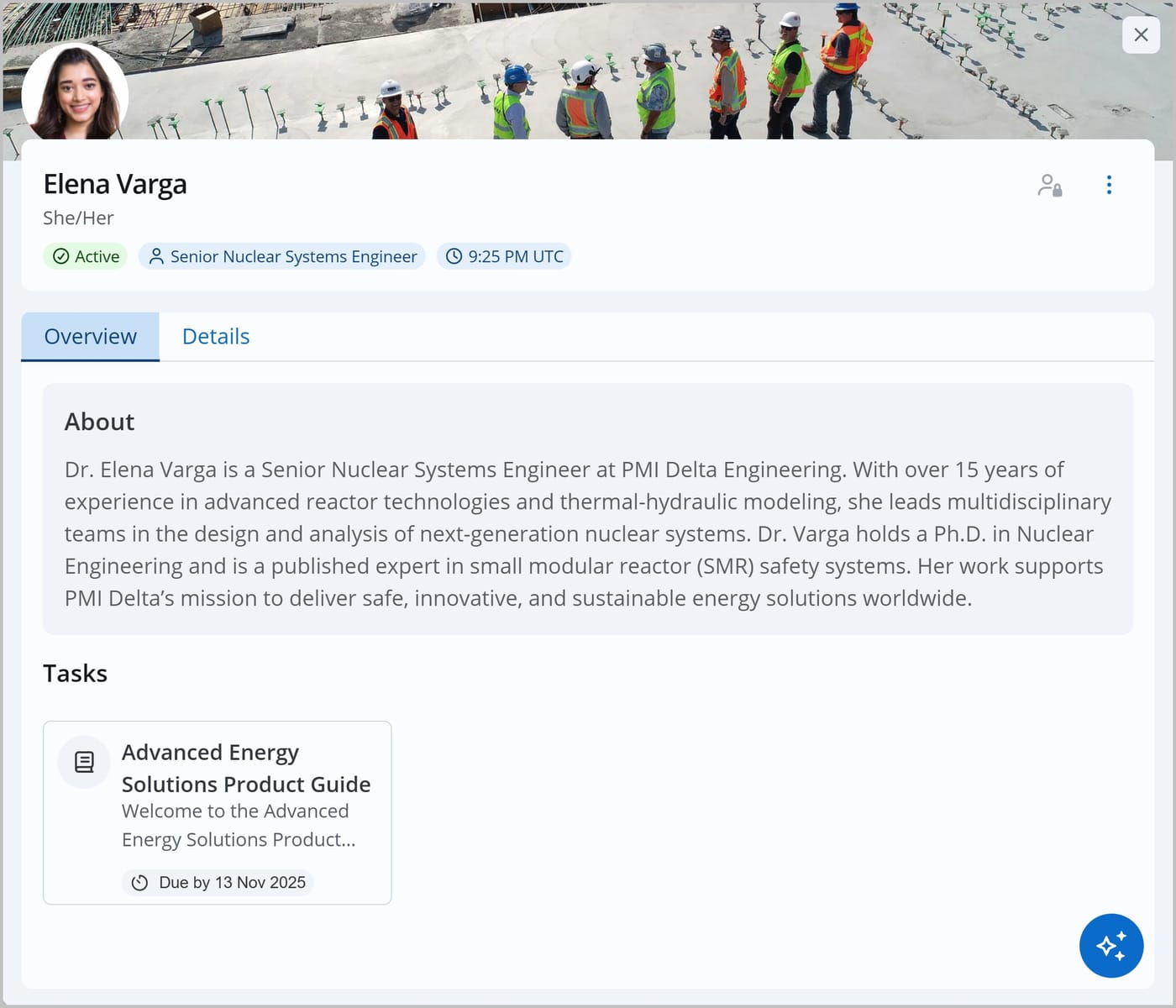
The Overview tab tells you a bit about the user and their current tasks. It includes the user's About section — their personal bio. For example, the bio may list their job skills, employment details, areas of expertise, or fun facts.
It also includes a Tasks section listing the user's assigned tasks. Each task displays as a card with the name of the associated Knowledge Center asset and its due date. You can view additional details for a task by clicking its card.
Details tab
The Details tab contains all of the user's information and settings, organized into sections.
- Basic Info: The user's first name, last name, display name, pronouns, title, division, timezone, preferred language(s), email, username, status (active or inactive — inactive users can't log in to Joy), and type (the user's role: Owner or User).
- Contact: The user's phone, mobile, and address.
- Coordinators: The user's Primary Learning Coordinator — their supervisor or another individual who has a direct relationship with the user.
- Advanced: The user's API ID (view only) — the ID you can use to reference the user if you're using the Joy API.
For a full description of every field and how to change it, see Managing users.